People who actually work near you
Matching is measured in kilometres from where you are. The default search reaches about 10 km and can widen to 50 km when nobody closer offers that trade.
For customers
A tap that will not stop dripping. A switchboard that trips. A door that no longer closes. KaamLink is an Android app that takes what you need done, puts it in front of professionals working near you, and lets you choose between the people who reply. You keep the decision at every step — who comes, when they come, and whether the job is finished.
What the app is
KaamLink introduces you to professionals and carries the conversation. The work itself, and the money, stay between you and the person you hire.
Matching is measured in kilometres from where you are. The default search reaches about 10 km and can widen to 50 km when nobody closer offers that trade.
KaamLink never picks a professional for you. It notifies people who match, and you read their offers and decide. No ranking is sold and no offer is promoted.
Your description, your photos, the agreed amount, the chat and a dated record of every step sit together, so nothing depends on remembering a phone call.
English, हिन्दी and ગુજરાતી — not just the buttons, but service names, job updates and the notifications the app sends you.
Professionals who were only invited see your area, your city and a rough distance. Your exact location and phone number go to the one person you actually choose.
Only the customer who hired someone can review them, once, after the job is complete. That is why the stars on a profile are worth reading.
Signing up and signing in
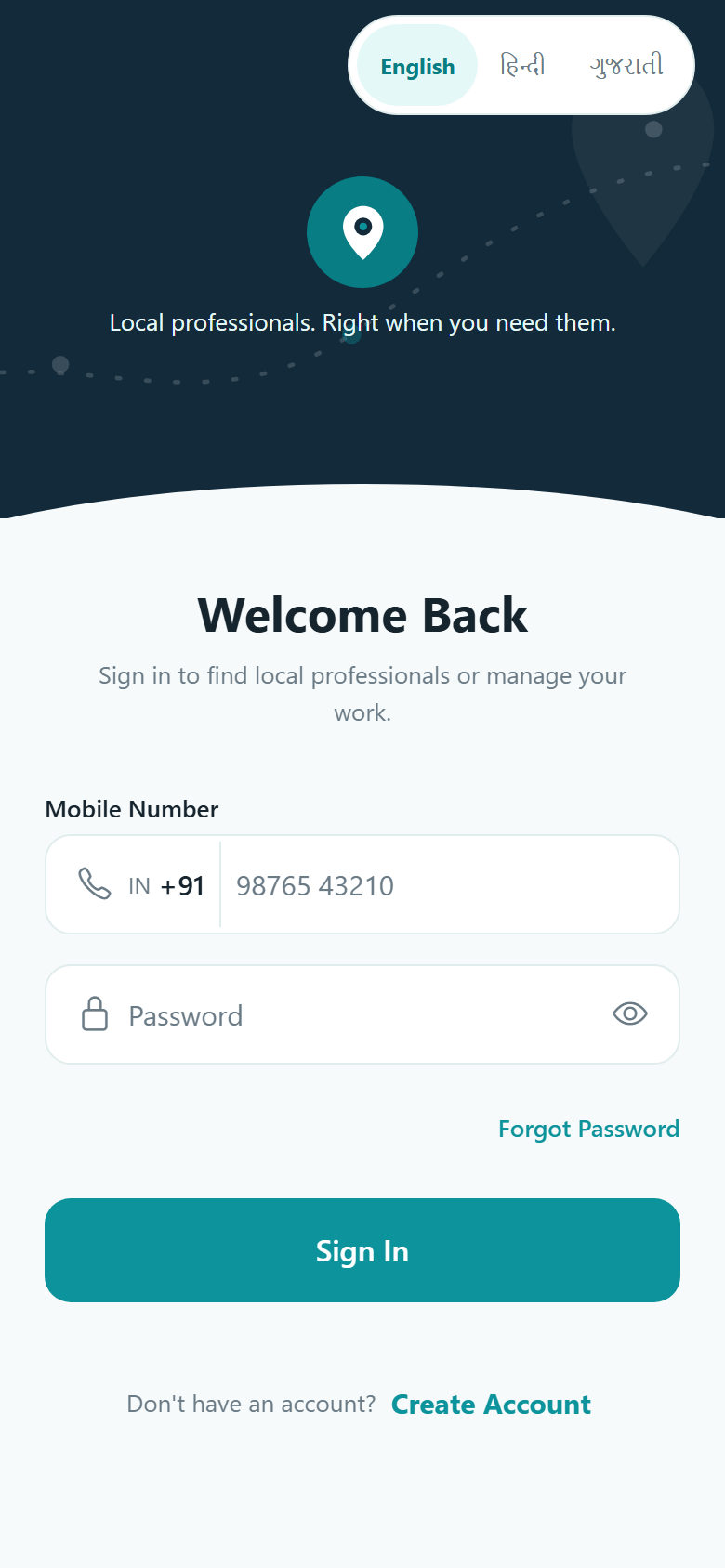
There is no email address, no password to invent, and no code to wait for by SMS. You set a six-digit PIN when you create the account and that is what you type from then on.
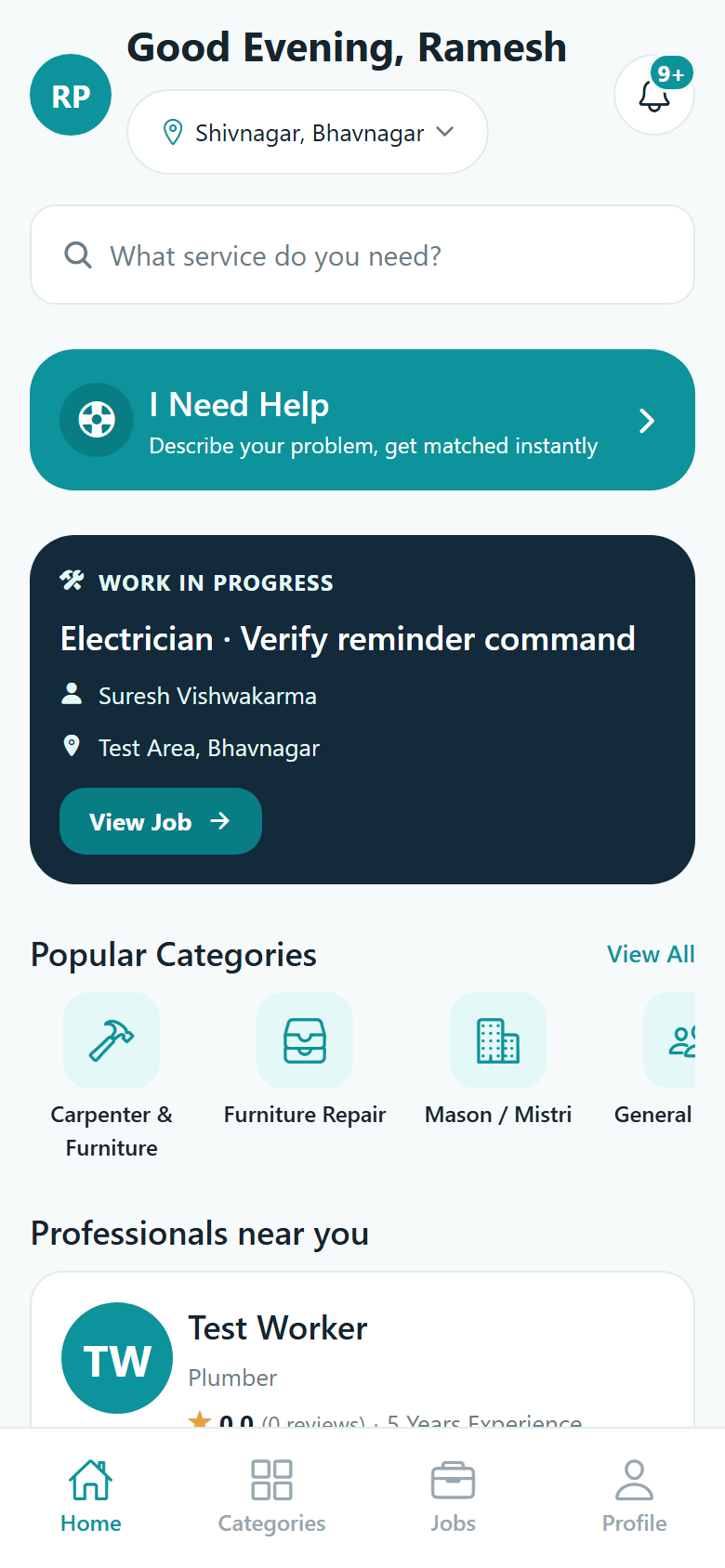
Your home screen
What you need done, and who is near you. Everything else is one tap away from there.
Two ways to ask
Both paths create the same kind of job and end in the same place. The difference is how many people hear about it, and whether you already know who you want.
Search or open a category, read profiles, then send your request to one person and nobody else. They are notified straight away.
Their reply usually arrives as a single quote, which appears on the job itself.
Write what is wrong in plain words, add photos, and post it. KaamLink puts the job in front of up to five nearby professionals who do that kind of work.
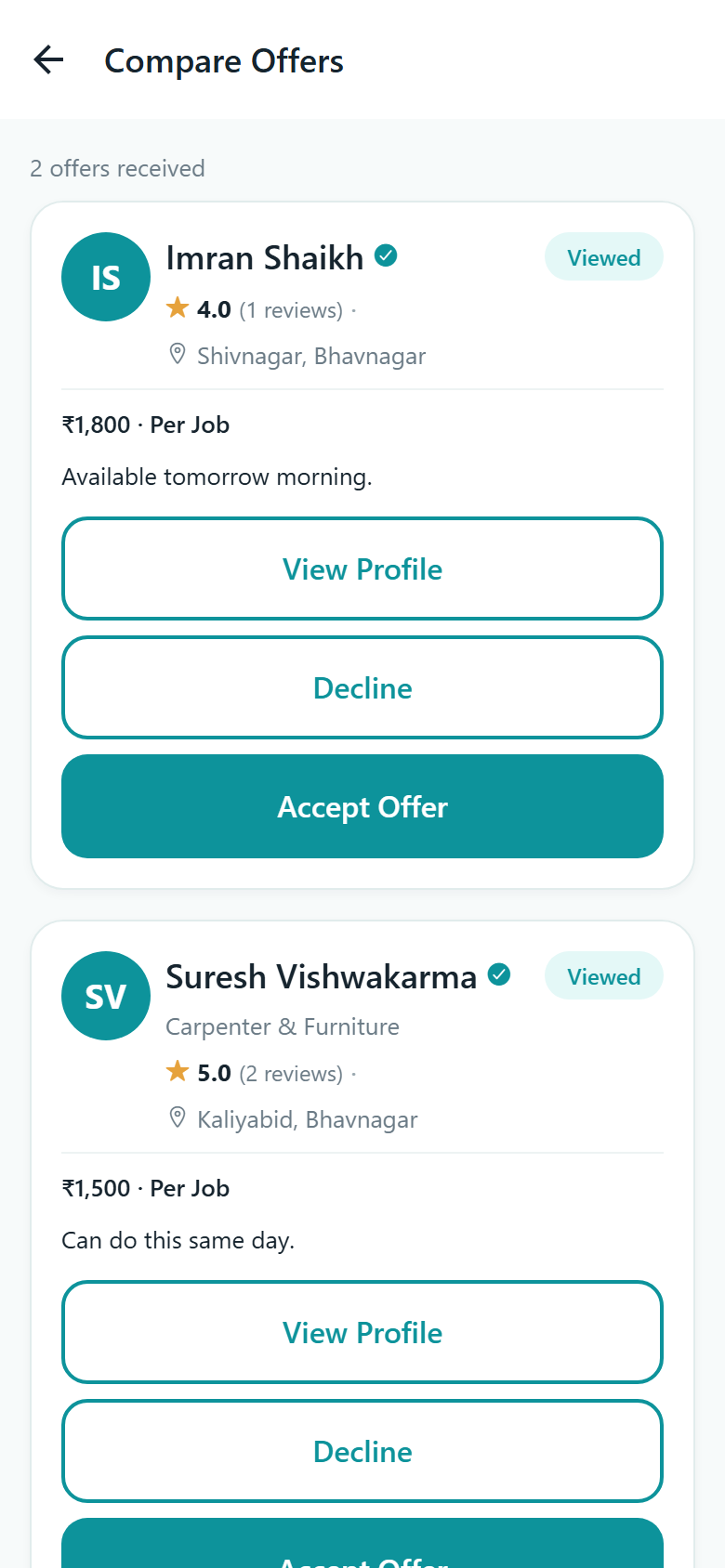
With two or more offers you get the Compare Offers screen to read them side by side.
Path A, step by step
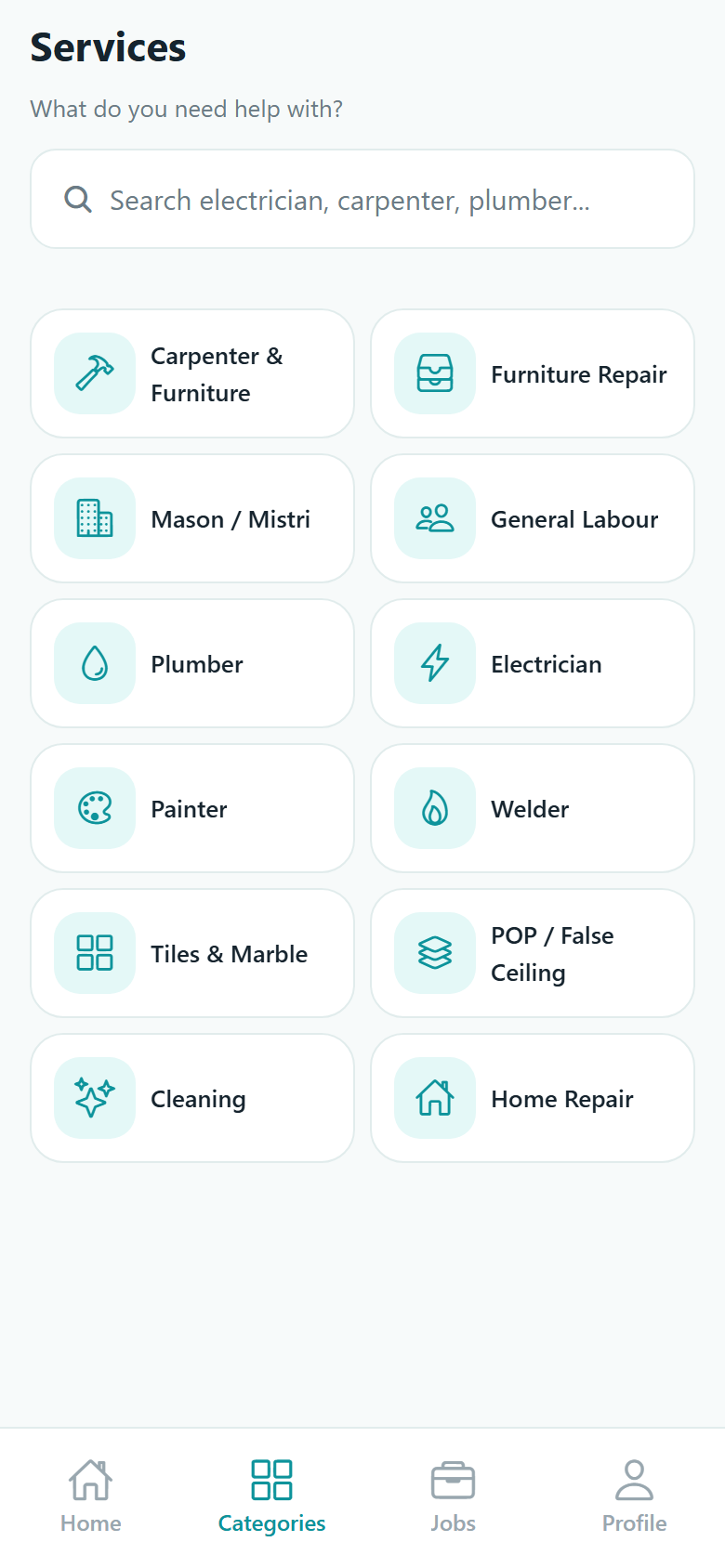
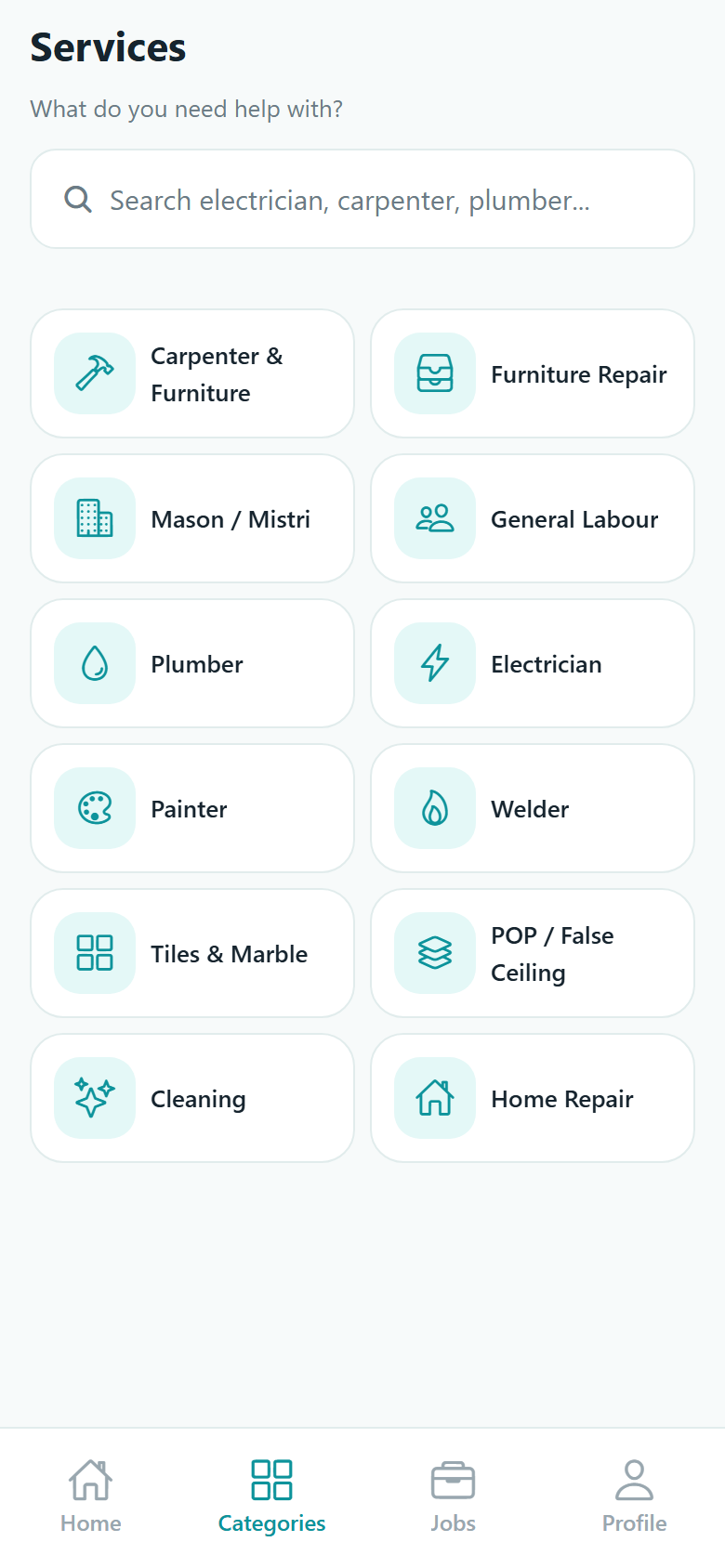
Plumbing, electrical, carpentry, masonry, painting, tiling, cleaning and the rest sit in a two-column grid, each with its name in your language. Type a few letters if you would rather jump straight to it. Pick a service and you go straight to the people who do it near you.
How close, how well rated, how experienced, who is free now, and what they charge. If nobody is within the distance you picked, KaamLink widens the search rather than showing you an empty list — and it tells you it has done so.
A profile shows their trade, how long they have worked, a Verified badge where it applies, their rating and review count, completed jobs, how far they travel, the services they offer with a starting price, photos of past work, and the reviews other customers wrote. A heart saves them to your own list.
A short form: the service, a title, a description, your area and city, a preferred date, an optional budget range, and up to ten photos. Send it and you get a clear confirmation that they have received it.
Path B, step by step
"My kitchen tap is leaking and the wall below is wet." You do not need to know whether that is a plumbing job or a fitting job. Add up to ten photos of the problem while you are there.
It reads the whole sentence against the live service list and comes back with the service it thinks matches, as a card you can accept — or you pick a different one yourself. Nothing is posted until you agree with the suggestion. This is plain phrase matching against the catalogue, not AI.
Your words and photos carry forward, so you are not asked to type them again. Add a preferred date and, if you want, a budget range. Both are optional.
Up to five professionals who actually offer that exact service, are inside your search radius and inside their own stated travel radius, and hold an active account. New professionals are included alongside established ones. The confirmation screen reports the real number notified — not an animation.
Each one carries a price, how it is charged, the date they can come and a note. Read them, accept one, and the rest are told the job has gone.
The 10 km matching radius, the 50 km maximum search radius and the limit of five professionals per open request are the current settings, adjustable by Connectgo. They are defaults, not promises — and nothing in KaamLink forces a professional to reply.
After the request goes out
One card per offer: the professional's photo, name, trade, verified badge, rating, review count, area and distance, then their price and how it is charged, the date they can come, and any note they wrote.
Compare Offers opens when a posted job has two or more live offers. A single offer — the normal case when you asked one person directly — appears on the job page itself.
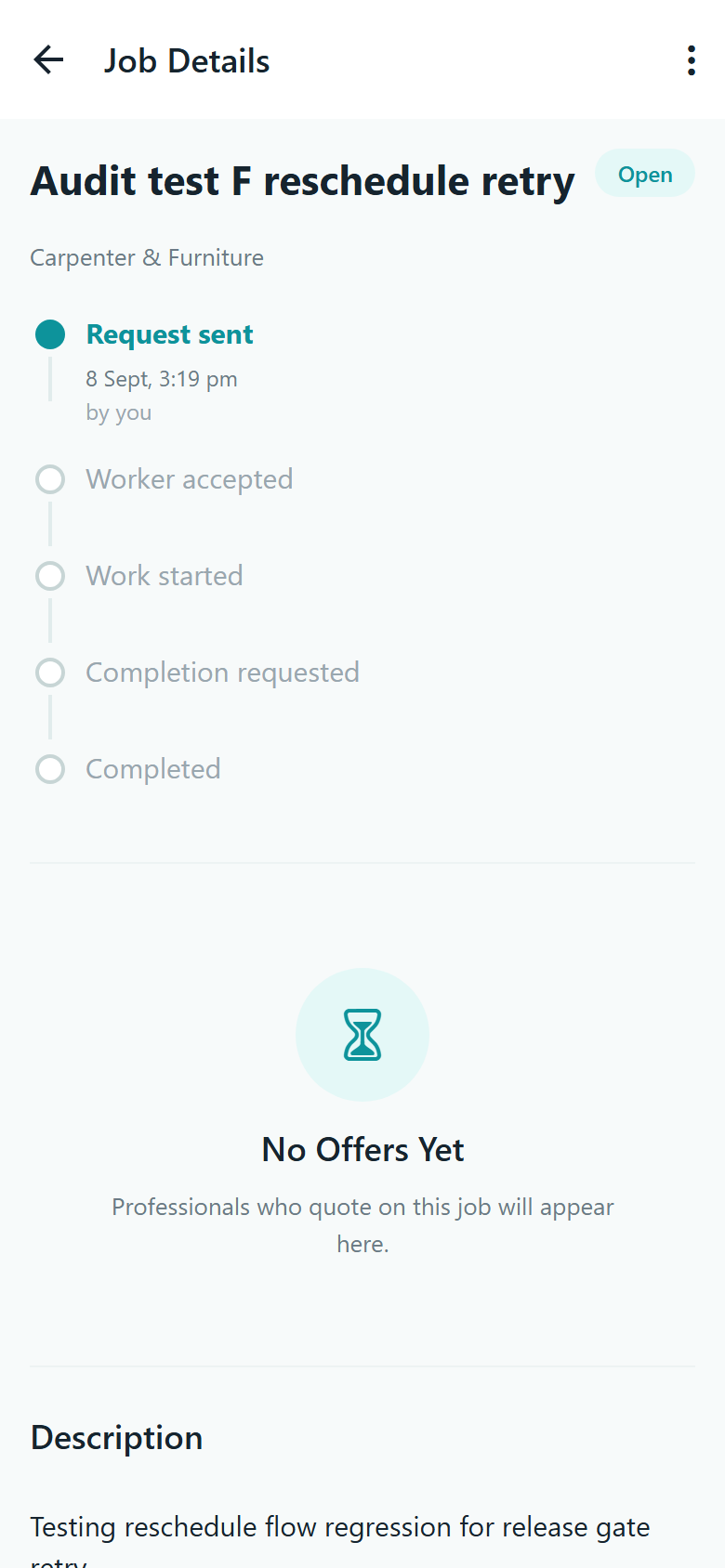
Every job has its own page showing exactly where things stand, with a dated timeline of each step and who took it. Your photos, your budget and the agreed amount all stay on the page.
Once you have hired someone, a chat opens on that job so directions, gate codes and photos all stay in one place instead of scattered across your phone.

When plans change
Both are treated as something the other person is told about properly, not a silent edit to a page they are also looking at.
Suggest a new date and time with a note if it helps. The professional accepts it or offers another. The job's date only changes once you have both said yes, and the change is written into the job's own history.
You can cancel at any point before the job is closed. You pick a real reason — your plans changed, you no longer need it, the professional is unavailable, you could not reach them, you posted it twice, or something else — and that is what the other person is told.
Finishing the job
When the professional marks the work finished, your job page shows their final amount, the note they wrote and photos of the completed work. The job does not close on its own.
Confirm Completion closes the job. Report an Issue sends it back to in progress with your note, and the professional is told why. A reminder nudges you if the job is sitting waiting on your answer, but nothing ever completes a job automatically.
Five stars and a comment box. One review per job, only from the person who hired, only after the job is complete. It shows on the professional's profile and helps the next customer choose. Their overall rating is recalculated from every review they have.
Staying up to date
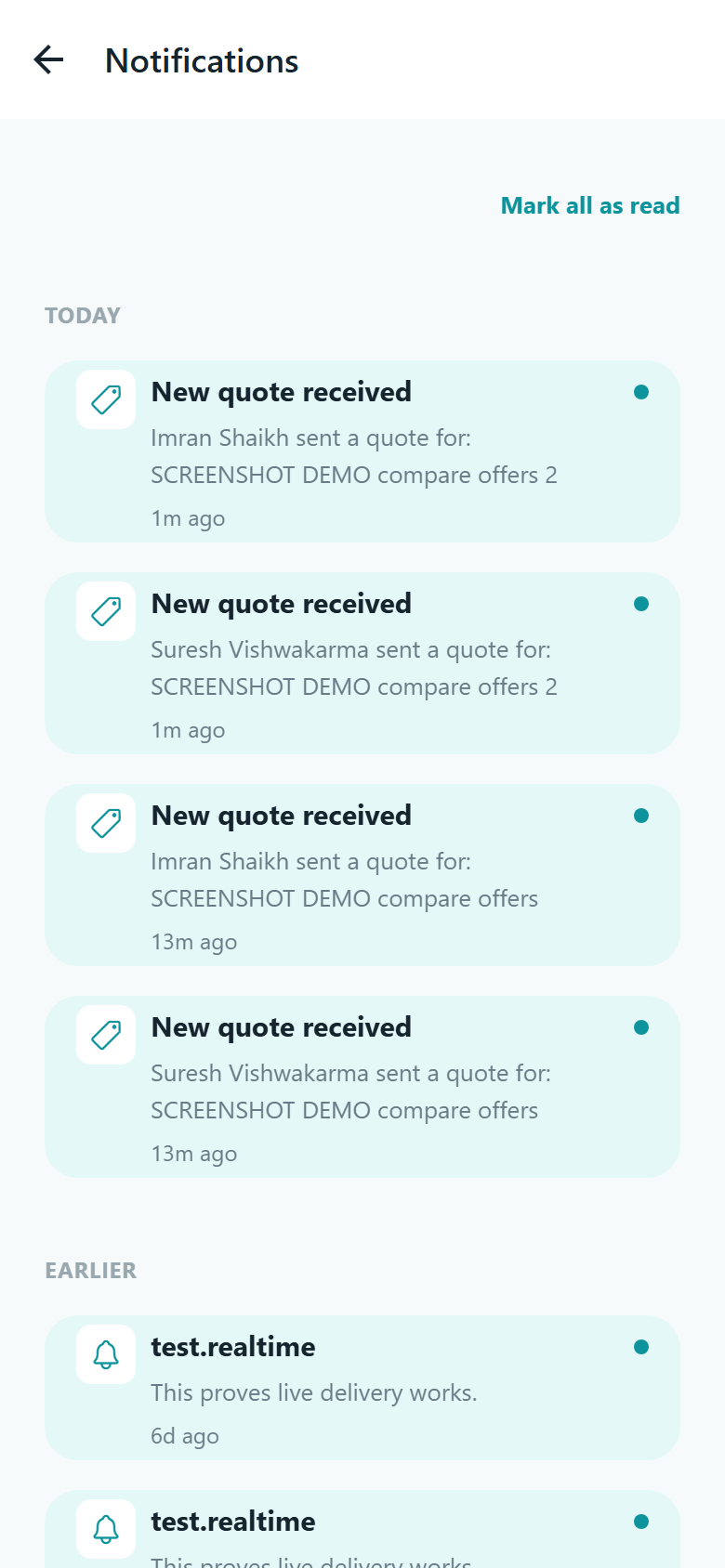
A professional accepts, a quote lands, work starts, or the job is waiting on you to confirm — each one arrives as a notification and is kept in a list so nothing is lost behind a dismissed banner.
Your account
Store the places you use, labelled Home, Work or a name of your own, filled from your current location or typed by hand. Set one as the default so you are not retyping it on every request.
Two lists — the people you saved, and everyone you have actually hired before. Each row offers Request Again, which pre-fills a fresh request with that person, service and location.
Two taps from your profile. The account is frozen at once and erased 30 days later, and you can reverse it within that window from the same phone using your number and PIN. Read exactly what is deleted and what is kept.
Straight answers
No. KaamLink handles no money at all. You and the professional agree an amount in the app and you settle it between yourselves. The app records the agreed and final figures as a shared note, and issues no invoice or receipt.
That a person at Connectgo reviewed an identity or trade document supplied by that professional and accepted it. It is not a background check, a police verification or a skills assessment, and it is not required to receive work — unverified professionals appear and are matched the same way.
No. There is no live tracking, no map of their journey and no arrival countdown. Your location is used to match and sort by distance when you search or post, and that is all. You will know they have started because they tap Start work and you are notified.
If you sent it to one person, only that person. If you posted it openly, up to five nearby professionals who offer that exact service, within about 10 km by default. The confirmation screen tells you the real number that were notified.
Only the professional you hire. Anyone who was merely invited to your open request sees your area, your city and a rough distance — never your doorstep and never your number. See the privacy policy for the full detail.
Do not confirm it. Report an Issue instead — the job goes back to in progress and the professional is told what you wrote. If the problem is more serious, the report option on the job goes to Connectgo's team. There is no refund process or dispute service, because KaamLink never held the money.
No. You can cancel it with a reason and use Post Again, which reopens the same request with your details already filled in, so you are only retyping what changed.
Not today. KaamLink is an Android app. There is no iOS build and no browser version for customers or professionals.
KaamLink is an Android app from Connectgo Infoware, in English, हिन्दी and ગુજરાતી. If you would like to know when it lands, or you want a hand getting started, talk to us.