- Home
- For Professionals
Local work, on your own terms
KaamLink puts job requests from people near you onto your phone. You decide which ones you answer, what you charge, and which days you work. Nobody sends you to a job, and nobody sets your price for you.
Android app, in English, हिन्दी and ગુજરાતી. Sign up with your mobile number and a six-digit PIN.
Straight answers first
What KaamLink is, and what it is not
You have probably been promised things by an app before. Here is the honest shape of this one, before you spend any time on it.
What it does
- Shows you to customers searching for your trade near you.
- Sends you job requests that match your trade and your distance.
- Lets you accept a job outright, or send a price and let the customer decide.
- Gives you the customer's number and full address once the job is yours.
- Keeps a dated record of who agreed to what, in case there is an argument later.
What it does not do
- It does not handle money. No payment passes through KaamLink — the customer pays you directly, the way you already arrange it.
- It does not promise you a number of jobs, or any income.
- It does not assign work to you. A request goes to a few nearby professionals and you compete for it fairly.
- It does not track where you are during a job.
- It does not run a public job board you can browse — work comes to you.
Getting set up
Five things to do before work can reach you
The app matches on facts you enter. If a fact is missing, requests quietly go past you — so it is worth doing this properly once.
-
1
Create a professional account
Signup is five steps: your name, mobile number and a six-digit PIN; choosing Professional rather than Customer; your working location; your trade details; then a review screen. There is no email address and no code to wait for. Pick your language on the first screen and the whole app speaks it.
-
2
Drop a real pin on where you work from
A professional cannot get past this step on a typed city name — the app asks for your actual position on the map. Every job you hear about is measured in kilometres from that point, so put it where you genuinely start your day.
-
3
List every trade you take on
One card per trade, with what you charge from and up to, and how you charge — per visit, per hour, per day, per job, or only after you have seen the site. The app only sends you a request when one of your listed trades matches the job exactly. A trade you leave off the list is work you will never hear about.
-
4
Set your service radius and your week
Your own radius decides how far you are willing to travel, and it is respected alongside the customer's. Then put your week in once — which days, between what hours — with a shortcut that copies Monday across the rest of the week.
-
5
Add photos of finished work
A few jobs you are proud of, each with a short title, do more for you than a paragraph about yourself. Post only work you did yourself — the app says so on the screen, and a customer who spots otherwise will say so in a review.
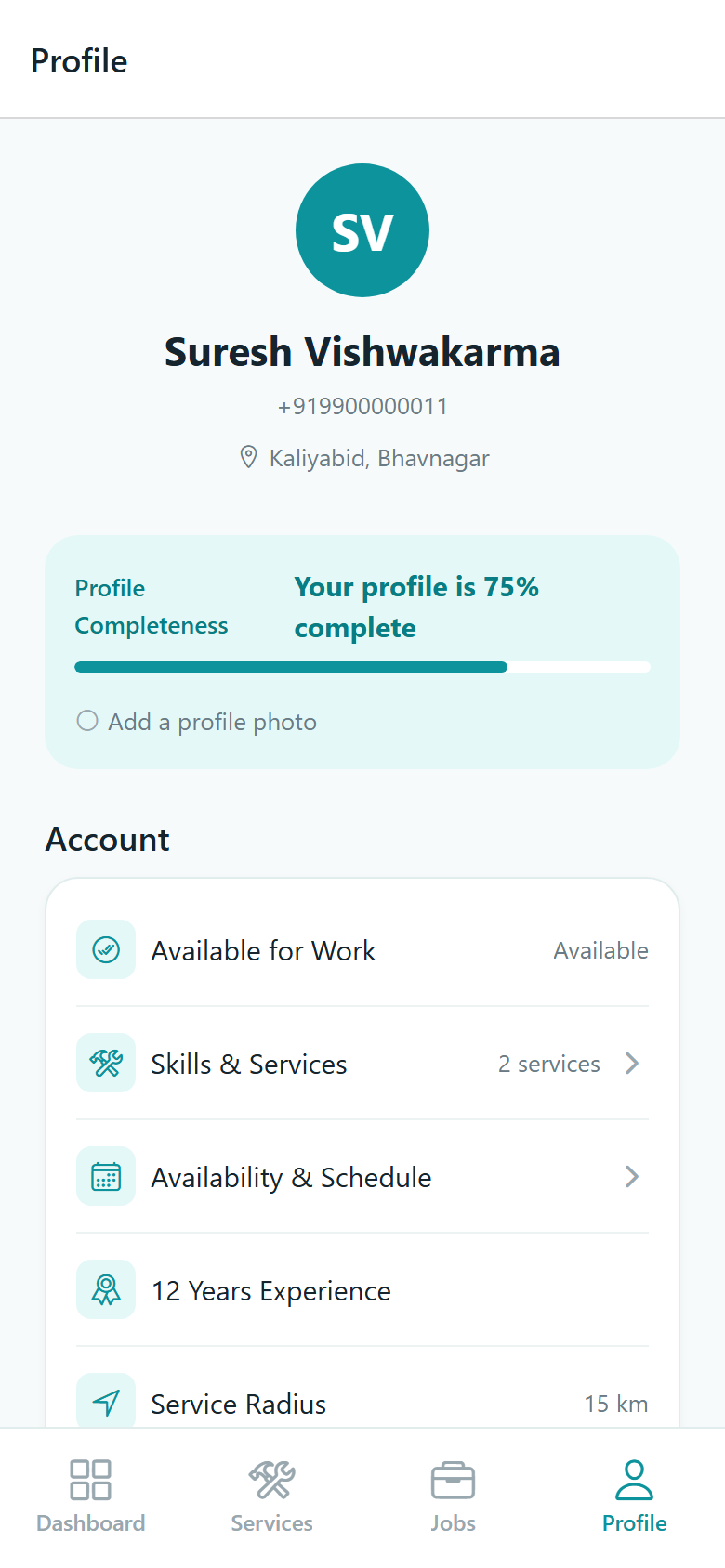
Verification
What the verified tick actually means
You send Connectgo one identity or trade document. A person on our team looks at it and either accepts it or does not. If they accept it, a tick appears next to your name wherever a customer sees you — in search, on your profile, and on the quotes you send.
That is the whole of it, and we would rather say so plainly than dress it up. It is not a background check, not a police or criminal-record check, not a skills test, and not Connectgo saying your work is good. It means one document was submitted and a reviewer accepted it.
Documents are accepted as JPEG, PNG, WebP or PDF, up to 5 MB. They are stored privately, not on a public web address, and only an administrator can open them. If you ever delete your account, the document and its file are deleted outright.
To start verification, email contact@connectgoinfoware.com or call +91 76006 17300 — the Connectgo team handles the submission with you.
You do not need it to start
Unverified professionals receive exactly the same requests. Verification, your rating and your completed-job count decide the order people appear in — they never decide who gets left out. That is deliberate: a new professional has to be able to earn a first job and a first review.
The four states your verification can be in. Your profile shows which one you are at.
How work arrives
Two ways a job lands on your phone
There is no job board to trawl through. Every piece of work reaches you as a request, with a notification, either because a customer chose you or because the app matched you.
A customer picked you
Direct requestSomeone searched their area, opened your profile, read your reviews and your portfolio, and sent the request to you and nobody else. Nobody is competing with you for it.
- Often comes from your photos and your rating doing their job.
- Customers can also request you again from their Previously Hired list.
The app matched you
Open request nearbySomebody posted a job without naming anyone. The app looks for professionals who list that exact trade, sit inside the job's radius and their own, and hold an active account.
- It goes to a small shortlist of nearby people, not the whole city.
- You are skipped if the time falls outside the hours or time off you set.
- An open request nobody answers closes after seven days.
These are the current defaults set by Connectgo, not fixed promises — they can be adjusted.
Before you answer
Read the job properly, then decide
Every request opens on a page with enough detail to judge it without ringing anybody.
- The customer's own description, in their words, and the photos they took.
- The trade, the area and city, and how far it is from you.
- The date they want it done and the budget range they have in mind.
- Whether it came to you directly or as an open request.
What you do not see yet is their street address or their phone number. That is on purpose, and it works the same way for everyone on the shortlist — nobody gets a head start by ringing first. Judge the job on the job.
Your Enquiries tab keeps everything filed under New, Viewed, Interested, Accepted, Declined and Expired, so nothing gets lost in a notification you swiped away.
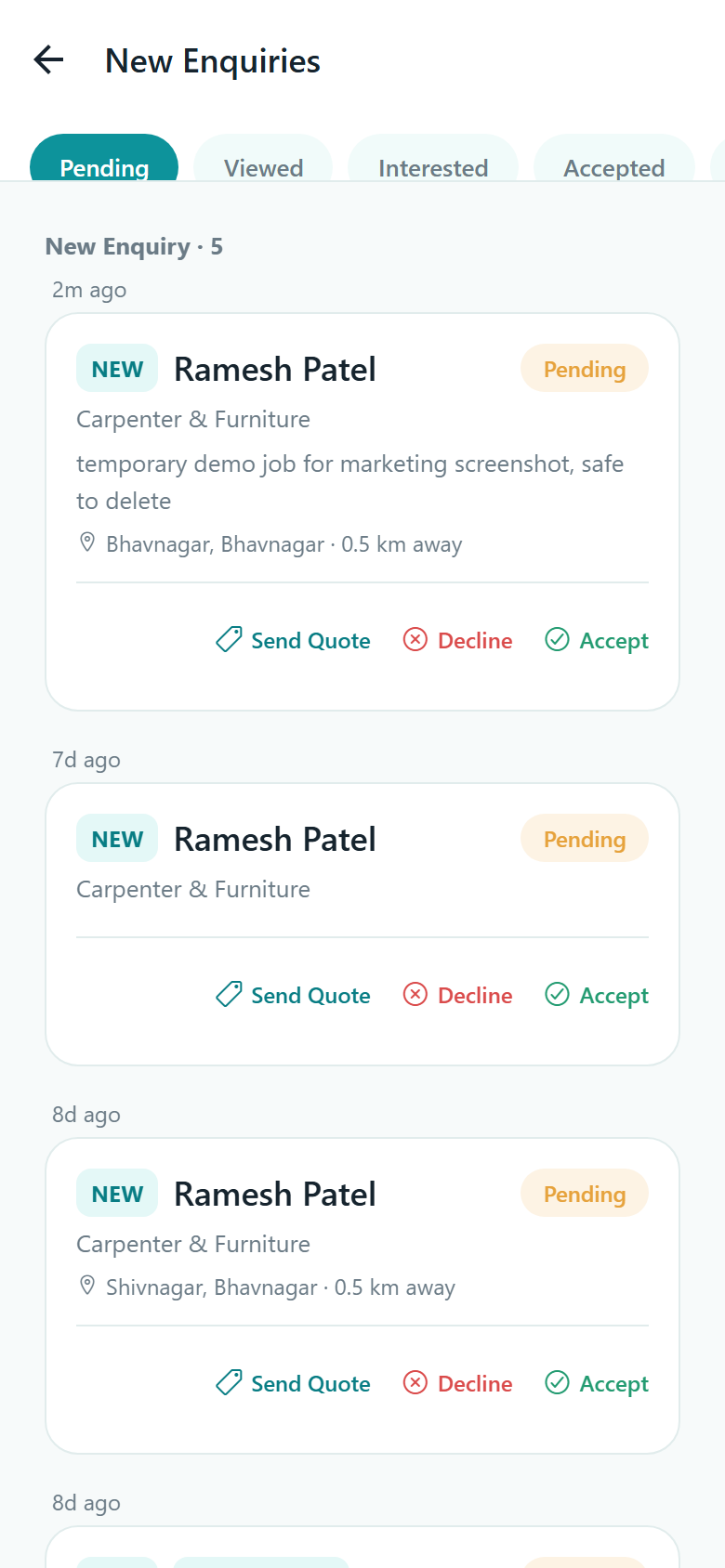
Answering
Accept it, or put a price on it
Two honest choices, and a third — declining — which just clears it off your list.
- Accept. If the job is right and the budget works, take it. First to accept wins; if somebody beat you to it the app tells you straight away rather than leaving you waiting on a maybe.
- Send a quote. Your price, how you are charging it, the date and time you can come, roughly how long it will take, and up to 500 characters telling the customer what they are getting.
- Decline. No explanation needed, and no penalty for it.
The note on a quote is worth writing. When two quotes are only a few hundred rupees apart, it is usually what decides which one gets accepted. You can revise a live quote while the job is still open, and you are told when a quote of yours is accepted, declined, or closed because the job went to somebody else.

The five ways you can charge
- Per visit
- Per hour
- Per day
- Per job
- After I have seen the site
You set a rate type on each trade in your profile, and again on each individual quote. "After I have seen the site" carries no figure at all — it tells the customer plainly that you will price it once you are standing in front of the work.
Doing the job
Once the job is yours
Assignment is the point where the app stops protecting the customer's details from you and starts helping you get there.
-
1
You get the number and the address
The customer's phone number and the exact location are released the moment the job is yours. Tap to call, or tap navigate from your Jobs list and the address opens in your maps app.
-
2
Chat opens on that job
Text and photos, arriving live. Gate codes, a picture of the fitting you need to bring, directions — all in one place instead of scattered across your phone. Chat exists only on jobs you actually hold.
-
3
Move the day if you need to
Either side can propose a new date and time with a note. Proposing never changes anything by itself — the date moves only when the other side accepts, and the agreement is written into the job's history. No argument later about who said what.
-
4
Tap Start work when you arrive
The customer is told you have begun and the job moves into your active list with a clear status. It takes two seconds and it settles the most common disagreement there is about when a job started.

Finishing
You submit it, the customer confirms it
Fill in the completion form
The amount that was agreed, the final figure it actually came to, a note, and photos of the finished work. Both amounts have to be real numbers before the button will submit, so a mistyped figure cannot be sent.
It waits for the customer
The job sits at "waiting for confirmation" with both amounts showing. Their confirmation is what turns it into a completed job on your record and adds to your completed count and total work value. The app never completes a job by itself.
Then the rating
One star rating and an optional comment per completed job, from the person who actually hired you. Your average is recalculated from every review you have ever had, so the number on your profile is the true average.
Your tools
One screen that tells you where you stand
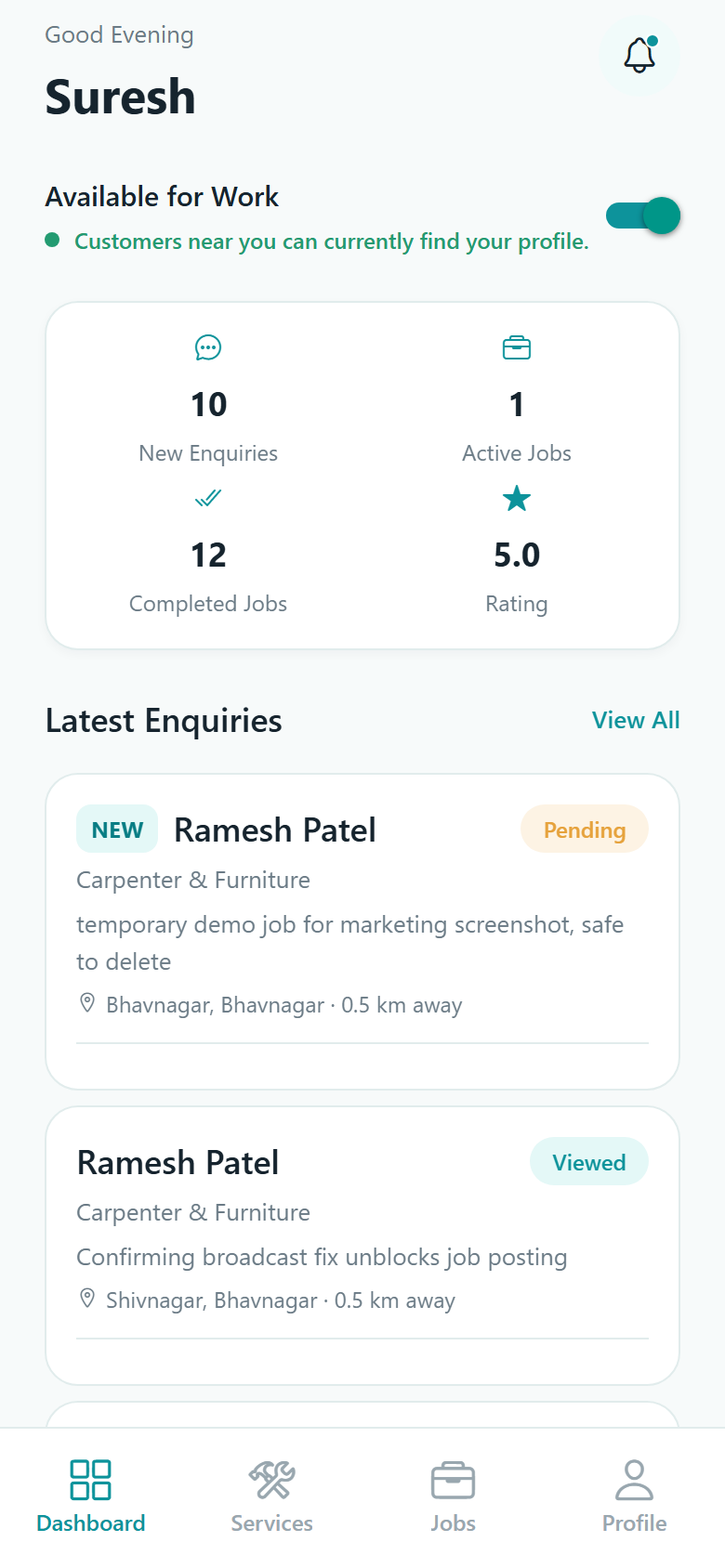
The dashboard opens on the four numbers that matter, and every one of them is a shortcut into the list behind it.
- New requests waiting on an answer.
- Jobs you are currently on.
- Jobs you have finished.
- Your star rating.
At the top sits the switch that tells the app whether you are taking work right now. It is yours to set — nothing resets it for you, and nothing turns it off behind your back.
Availability and time off
A Sunday-to-Saturday schedule with hours per day. Three quick chips for available today, available tomorrow, or unavailable. Dated time off, and holiday ranges with a reason.
Your jobs, sorted
Filters for Active, Assigned, Upcoming, In progress, Waiting for confirmation, Completed and Cancelled. The Upcoming view groups work into overdue, today, tomorrow, this week and later.
Private feedback about a customer
After a job is completed or cancelled you can answer four yes-or-no questions: were they there, was the job described accurately, was the site safe, were you treated properly. Plus a note if you want.
Cancelling, and reporting
If you genuinely cannot make a job you have taken, cancel it in the app with a reason rather than leaving the customer waiting. They are told properly. If something about a job is not right, the menu in the corner reports it to Connectgo.
In your language
The whole app, not just the buttons
Job titles, status updates, notifications and service names all arrive in the language you chose. Change it any time from your profile.
- English English
- हिन्दी Hindi
- ગુજરાતી Gujarati
Questions
The things professionals ask first
What does KaamLink cost me?
There is no charge built into the app — no commission is taken, no fee is deducted, and the app has no way to charge you because it handles no money at all. If anything about this changes, it will be told to you plainly rather than appearing in a bill. For anything commercial, speak to Connectgo directly on +91 76006 17300.
How do I get paid?
Directly by the customer, exactly as you do now. KaamLink records the agreed amount and the final amount as a shared note of what the two of you settled on — that is a record, not a transaction. No money passes through the app, there is no wallet, and the app cannot chase an unpaid bill for you.
How many jobs will I get?
We are not going to give you a number, because nobody honestly can. It depends on how many customers are posting in your area, how many of your trades you listed, how far you are willing to travel, and whether you answer requests while they are fresh. An open request goes to a small shortlist and you still have to win it.
Someone else accepted before me. What happens?
You get told immediately that the job has already been taken, and nothing is left half-written on your side. The same happens to any quote you had sent on that job — it is closed and you are notified.
Can I use one account for both sides?
No. The role is chosen once at signup and there is no switch inside the app. If you also want to hire someone for your own home, that needs a separate account on a different mobile number.
I forgot my PIN.
There is no reset link and no reset code. Contact Connectgo on +91 76006 17300 or contact@connectgoinfoware.com, and a temporary password is issued that you change on your next sign-in.
Does the app track where I am?
No. Location is read only while the app is open and only when it needs a position — to set your base address and to measure distance. There is no background location, no tracking during a job, and no automatic check-in or check-out.
What if I want to leave?
Delete your account from Profile, then Account Settings. Settle or cancel any open jobs first. The account is frozen immediately and you have thirty days to restore it before the data is erased. The full detail is on the account deletion page.
Set it up once, and let the work find you
KaamLink is an Android app. Get in touch and the Connectgo team will help you install it, set your trades and area, and start verification.