1. Home
  2. How it works

How KaamLink works

One person needs a job done. Another person does that job for a living. KaamLink puts the request in front of a handful of professionals working nearby, carries the conversation while the two of them agree a price and a date, and keeps a record of what was agreed. Here is the whole thing, in order, from both sides.

The short version

Two sides, one job record

Whichever side you are on, the job is the same object. You both see the same status, the same dates, the same agreed amount and the same history of what changed.

For customers

You need the work done
  1. 1

    Say what you need

    Pick a service, or just describe the problem in your own words and let the app work out which trade it is.

  2. 2

    Send it to one person, or post it

    Choose a professional yourself, or post the job and let KaamLink notify up to five nearby professionals who do that trade.

  3. 3

    Read the offers and choose

    Price, how it is charged, the date they can come, their rating and their distance. You pick. Nothing is picked for you.

  4. 4

    Confirm the work when it is done

    The professional sends a final amount, a note and photos. You confirm it, or send it back with what still needs doing.

The customer side in detail

For professionals

You do the work
  1. 1

    Set up your trades and your map pin

    List every trade you take on, what you charge, the hours you work, and the spot you work out of. All of it decides which jobs reach you.

  2. 2

    Requests arrive on your phone

    Either a customer picked you from search, or the app matched you to an open job nearby. You never have to go hunting for leads.

  3. 3

    Accept it, or send a price

    Take the job outright, or quote: your amount, how you charge, when you can come and a short note to the customer.

  4. 4

    Do the work and close it out

    Start the job on site, then submit the final amount and photos. The customer's confirmation is what marks it complete.

The professional side in detail

Step by step

If you need work done

Six steps from opening the app to a finished job. You can stop at any point — nothing is committed until you accept an offer.

  1. 1

    Sign in with your number and a PIN

    Your account is your mobile number and a six-digit PIN. There is no email address to give and no code to wait for. Pick English, हिन्दी or ગુજરાતી on the first screen and the whole app speaks that language.

  2. 2

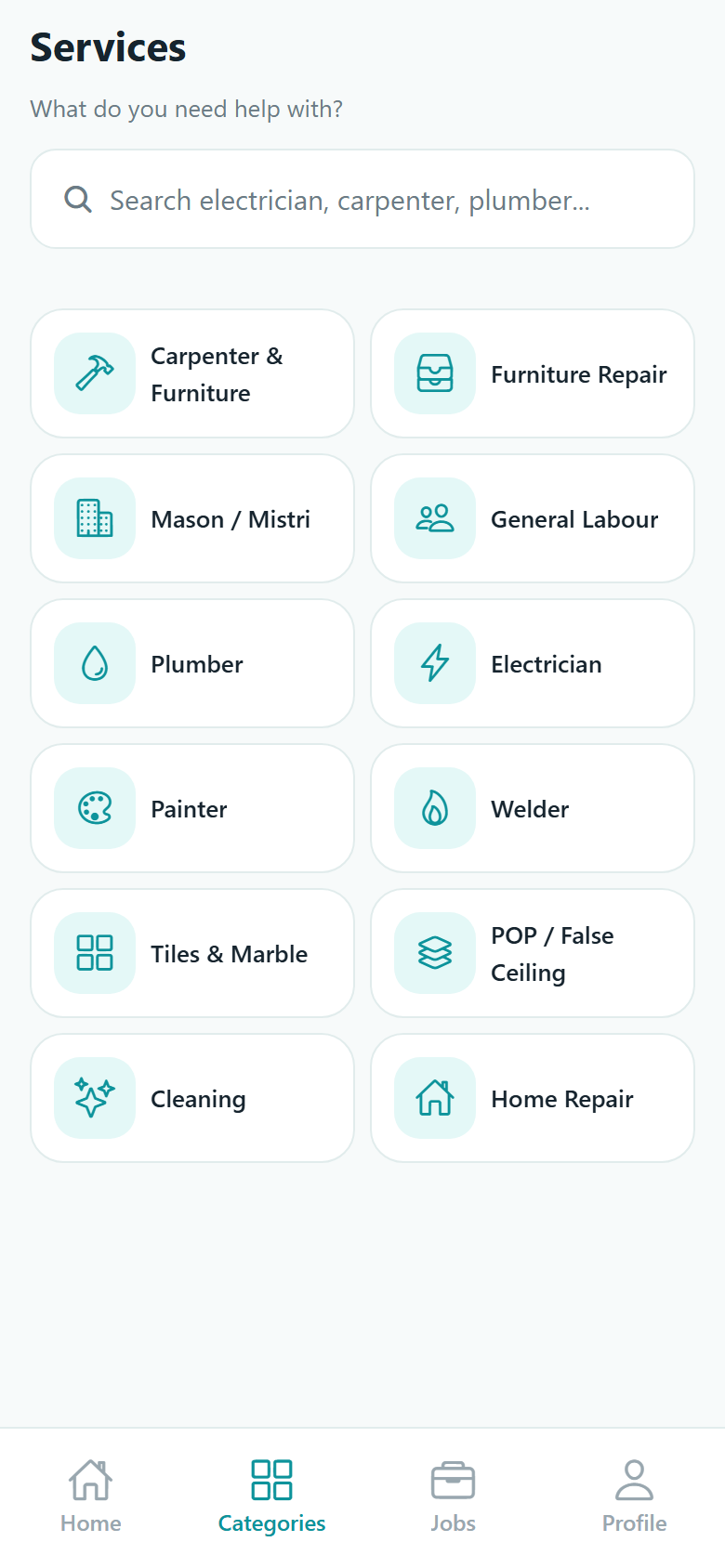
    Find the service, or describe the problem

    Browse the categories, search and filter by distance, rating, experience, who is free now and price. Or open "Need help?", write what is wrong — "my kitchen tap is leaking and the wall below is wet" — add photos, and KaamLink suggests the trade that matches. You still choose before anything is sent.

  3. 3

    Send the request

    Two routes, and you decide which. Send it to one professional you picked from search, and only they hear about it. Or post it with nobody attached, and KaamLink notifies up to five nearby professionals who actually offer that service. The confirmation screen tells you the real number of people notified.

  4. 4

    Read the offers

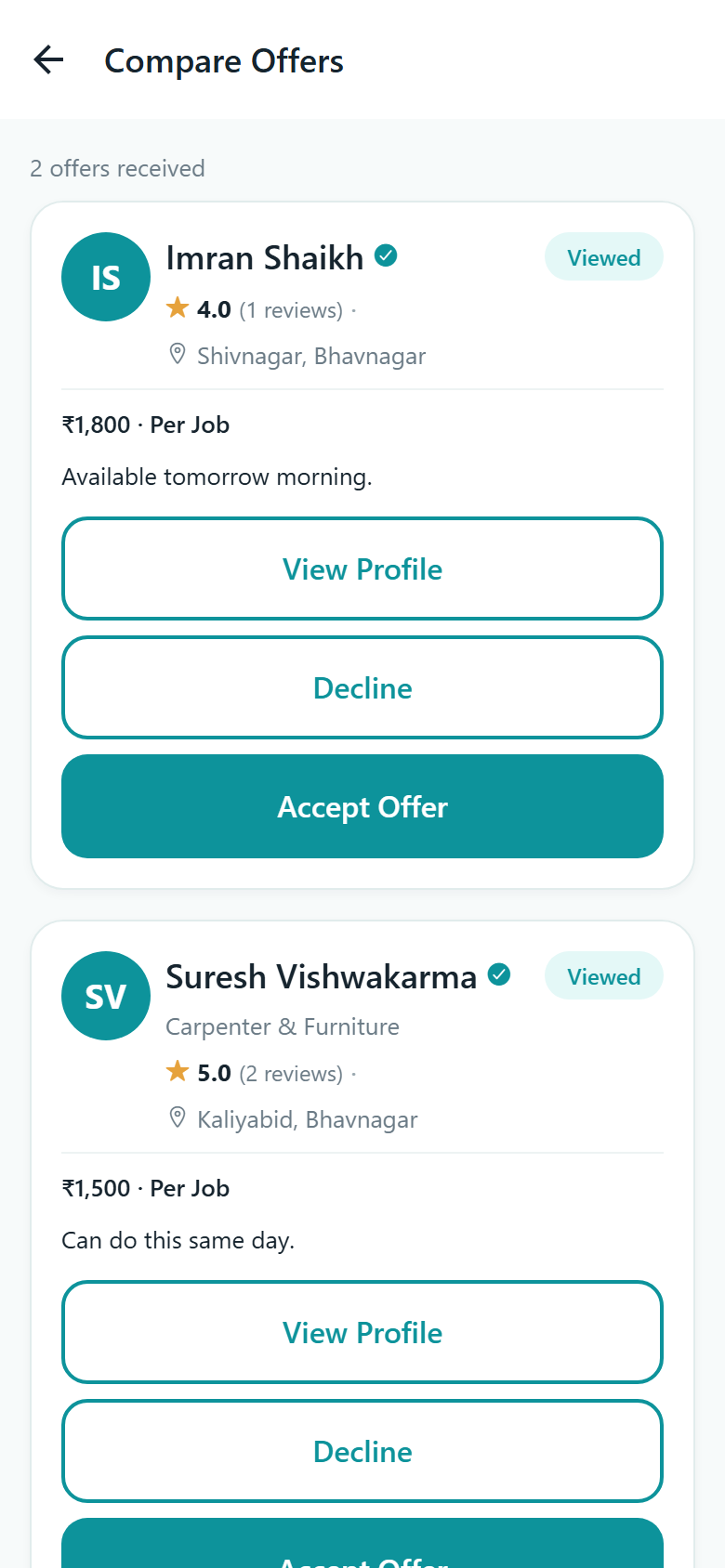
    Each offer carries a price, how it is charged, the date they can come and a note they wrote, next to their rating, review count and distance. Two or more offers on a posted job open the compare screen; a single offer shows on the job itself.

  5. 5

    Accept one, and the job is on

    Accepting records the agreed amount, assigns that professional and closes every other offer on the job in the same moment, so nobody is left waiting on you. Their number and your full address are released to each other at this point — and only at this point. A chat opens on the job.

  6. 6

    Confirm the finished work, then rate it

    When the professional marks the work done, the job waits on you with their final amount, note and photos. Confirm it, or report an issue and it goes back to in progress with your reason attached. Once it is complete you can leave one star rating and a comment.

See every customer screen

KaamLink search results listing nearby professionals with their rating, trade and distance, above filter chips for nearest, available and top rated
Search and filter
KaamLink compare offers screen showing quote cards with price, rate type, available date and each professional's rating
Compare offers

Step by step

If you do the work

There is no job board to trawl. Work arrives as a request, and it arrives because your trade, your distance and your own service radius all matched the job.

  1. 1

    Set up the account properly, once

    Choose Professional at signup and set the spot you work out of on the map — not just a city name, because every job that reaches you is measured in kilometres from that point. Then list your trades with a price range and how you charge: per visit, per hour, per day, per job, or only after you have seen the site.

  2. 2

    Say when you work

    A Sunday-to-Saturday schedule with a shortcut that copies Monday across the week, plus time off: unavailable today, unavailable until a date, or a holiday range. A separate switch on the dashboard says whether you are taking work right now.

  3. 3

    A request lands

    Either a customer found you in search and contacted you directly, or the app matched you to an open job posted nearby. An open job goes to a small shortlist — up to five professionals by default, within about 10 km — so the request in your hand is one you have a real chance at. A request nobody answers closes after seven days.

  4. 4

    Read it, then accept or quote

    You see the customer's description, their photos, the area, the distance from you, the date they want and their budget range. You do not yet see their doorstep or their phone number, and neither does anyone else on the list. Accept and the job is yours — first accept wins, and a losing tap is told so straight away. Or send a quote with your price, your date and a note.

  5. 5

    Go and do the job

    Once it is yours you get the number, the full address and a chat thread that carries photos. Open the address in your maps app and drive. Tap Start work when you are actually on site, and the customer is told you have begun.

  6. 6

    Close it out

    Enter what was agreed, what the final figure came to, a note and photos of the finished work. The job then waits for the customer to confirm — and their confirmation is what adds it to your completed count. If they report a problem it comes back to you with their reason rather than going cold.

See every professional screen

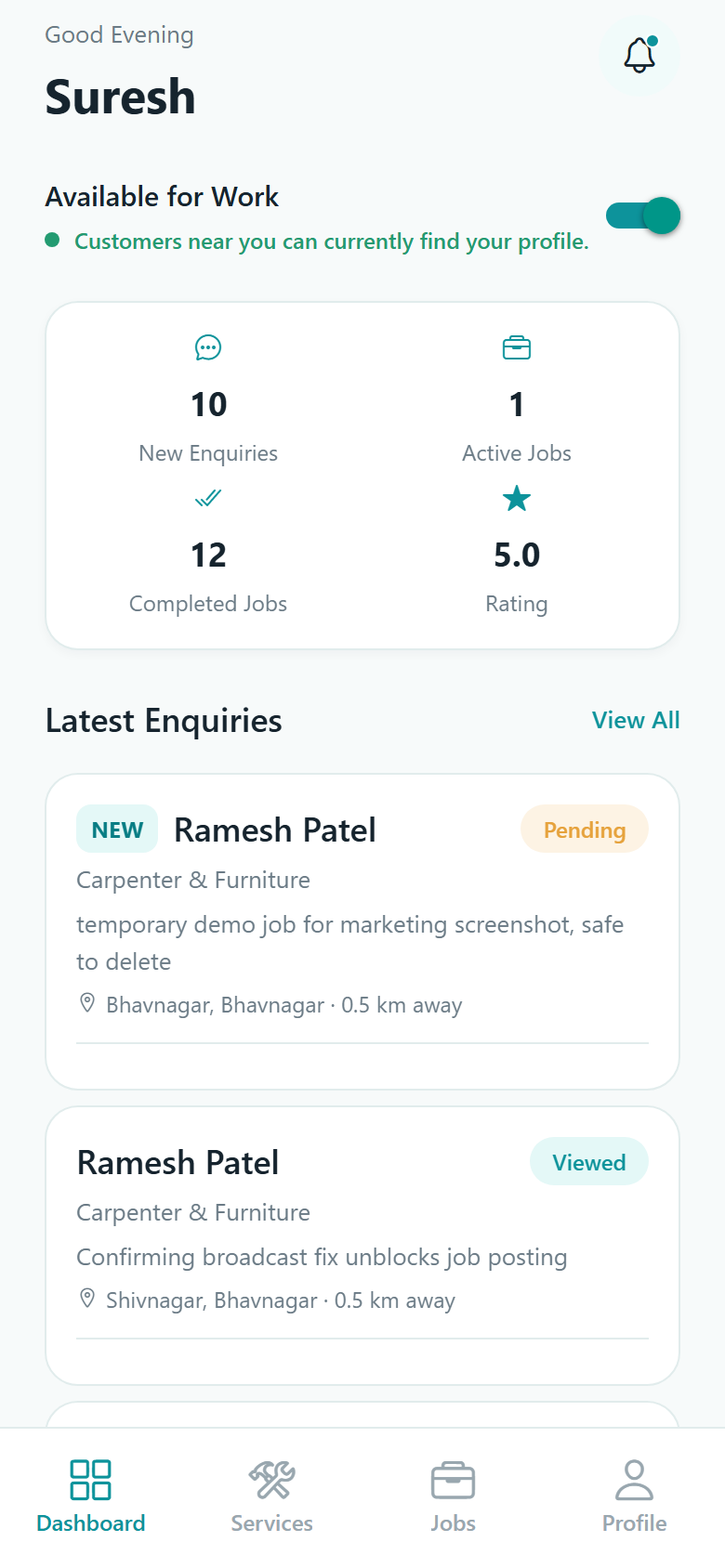
KaamLink professional dashboard with an available-for-work switch and tiles counting new enquiries, active jobs, completed jobs and star rating
Professional dashboard
KaamLink send quote form with fields for amount, rate type, available date and start time, estimated duration and a message to the customer
Sending a quote

Where the two sides meet

A request becomes a quote, becomes an agreed job, becomes finished work

This is the handover, in order. Each row is one moment in the job's life, and what each side is doing at that moment.

How a KaamLink job moves from a customer's request to completed work
Stage The customer The professional What the app does
Open Describes the job, adds photos, a preferred date and a budget range. Gets a notification and reads the request — area, distance and budget, but not the address or phone number. Creates the job and notifies either the one professional chosen, or up to five nearby ones who offer that exact service.
Quoting Watches offers arrive and compares them side by side. Sends a price, a rate type, the date and time they can come, and a note. Keeps one live quote per professional per job, and tells the customer each time one lands.
Assigned Accepts the offer they want. Is told they won it — everyone else is told the job has gone. Records the agreed amount, assigns the job, closes every other quote and enquiry at once, and opens the chat.
In progress Can message, share photos, or propose a new date. Arrives and taps Start work. Can propose a new date too. Releases the address and both numbers to these two only, and writes every change onto the job's timeline.
Waiting on the customer Sees the final amount, the note and the photos, and confirms — or reports an issue. Submits the agreed amount, the final amount, a note and photos of the finished work. Holds the job here. It never completes itself; a reported issue sends it back to in progress with the reason attached.
Completed Leaves one star rating and an optional comment. The job is added to their completed count, and the rating is recalculated from every review they have. Closes the job and keeps the whole record — dates, amounts, photos and history — on both sides.

Distance decides the shortlist

A posted job is measured against each professional's own map pin, and it has to fit inside both the job's search radius and the radius that professional set for themselves. The current defaults are 10 km for matching and 50 km as the widest a search will go.

Only one person can take a job

Several professionals may be looking at the same request. The first to accept takes it, and everyone else is told immediately that it has gone rather than being left to wonder. The same is true when a customer accepts a quote.

A date change needs both of you

Either side can propose a new day and time with a note. Proposing does not move anything — the job's date only changes when the other person accepts, and the agreement is written into the job's own history.

Staying in touch

Chat belongs to the job

There is no open messaging on KaamLink. A conversation exists on one job, between the customer and the professional who took it, and it opens the moment the job is assigned.

  • Text plus one photo per message — a picture of the leak, the spare part, the gate.
  • Messages arrive live rather than on a refresh, and opening the thread marks it read.
  • Notifications for the things that matter: a quote arrives, work starts, a date is proposed, a job is waiting on you.
  • Calling hands off to your phone's own dialler, and only when the other person has chosen to share their number.

Every feature, listed

KaamLink job chat thread with messages from the customer and the professional, timestamps and a photo attachment button
Job chat

Plainly

What KaamLink does not do

It is worth being clear about this up front, because it changes how you use the app.

  • KaamLink does not choose a professional for you. It notifies people who match and then gets out of the way. You read the offers and you decide.
  • "Verified" means a document was checked. A member of the Connectgo team reviewed an identity or trade document the professional supplied and accepted it. It is not a background check, a police check or a skills test, and a professional does not need it to receive work.
  • There is no insurance, warranty or guarantee on the work. The agreement about the job is between the two people doing it.
  • Nobody is tracked. Your location is used to match and to sort by distance when you search or post — there is no live map following a professional to your door.
  • There is no guaranteed response. Nothing in the app forces a professional to reply, and no job is completed automatically if someone goes quiet.

Common questions

Before you start

Do I need an email address to sign up?

No. An account is your mobile number and a six-digit PIN. No email address is collected from customers or professionals at any point, and there is no code or OTP to wait for.

What if I forget my PIN?

There is no automatic reset. The app shows you Connectgo's support email and phone number, and a person issues you a temporary password. You can reach us at contact@connectgoinfoware.com or +91 76006 17300.

Can one account be both a customer and a professional?

No. You choose which one you are when you sign up, and that is what the account stays. There is no switch inside the app.

How many professionals see my job?

If you send it to one professional you picked, only they see it. If you post it without choosing anybody, the current default is up to five nearby professionals who offer that exact service, inside about 10 km. After posting, the app tells you the real number who were notified.

When does a professional get my address and phone number?

Only once you have actually hired them. Before that, an invited professional sees your area and city and roughly how far away you are, and nothing more precise.

What languages does the app work in?

English, हिन्दी and ગુજરાતી. It is a full translation — service names, job updates and the notifications you receive, not only the buttons. You can switch at any time and the app changes over straight away.

Can I change a job after I have posted it?

A posted job cannot be edited. You can cancel it with a reason and post it again — the app carries your description, location and budget into the new request.

Ready to see your own side of it?

The two side pages walk through every screen, with what each one does and what happens behind it.